
Disclaimer
The content represented within this document is current upon the date of publication. Some material may or may not apply to the user's individual circumstances due to differences in user role options enabled, and the user's specific client setup. Refer to the latest release notes for additional updates.
Reporting Data Standard
The PDMP requires prescription data be reported electronically in the American Society for Automation in Pharmacy (ASAP) Standard for Prescription Monitoring Programs. Submission of paper reports or hard copies of digital media (e.g., mailed CD or floppy disk) are not permitted. Approved electronic reporting methods include secure FTP (SFTP) over SSH, SSL website, or the online Manual Entry/Universal Claim Form.
The PDMP requires all reports be submitted in the American Society for Automation in Pharmacy (ASAP) Standard for Prescription Monitoring Programs. Detailed specifications for ASAP are listed in Appendix A: ASAP Specifications.
Dispensers must report controlled substance prescription drug dispensing to the PDMP every 24 hours, including the submission of a ‘Zero Report’ on days when no controlled substance prescriptions were dispensed.
If a dispenser’s report is rejected by the PDMP as incomplete or inaccurate, the dispenser must submit a corrected report within three (3) business days of being notified by RxGov of receipt of incomplete or inaccurate data.
If a dispenser suffers a mechanical, electrical, or other technical failure that, as a direct consequence, precludes the dispenser’s ability to submit an electronic report, the dispenser must notify State PDMP within 24 hours of discovery of the technical failure and report data on each drug dispensed during the period of technical failure as soon as possible, but no later than 24 hours following re-establishment of the means of electronic reporting.
Guidelines for Zero Reporting
If a dispenser has no controlled substance dispensing transactions to report for the day, the dispenser must submit a zero report, as described in the Reporting Zero Dispensing topic in this guide.
Submitter Account
The following sections describe RxGov PDMP account creation, modification, account lockout, updates to profile details, and viewing of system notifications.
Creating Your Account
To submit data, you will first need to create a Submitter account. If you have already created your account, proceed to the appropriate section of this document that outlines the steps you must follow to submit your data.
Complete the following steps to create a new RxGov user account:
1. Go to the RxGov
2. On the RxGov homepage, click Register/Sign-Up and follow the directions on the screen to create an account.
Enter the following information:
- First Name
- Last Name
- Street address
- City
- Zip code
- State
- Mobile Phone Number
- In the Account Type menu, select Submitter.
- Enter your Submitter Name.
- Click Register.
- View the displayed Registration Complete message.

- The account is now pending. Newly created accounts must be activated by an RxGov Administrator before the user can proceed to log in.
- After the RxGov Administrator activates the new account, a PDMP RxGov Account Status Changed email is sent to the email address associated with the account to notify that your account is now active.
- Open the RxGov URL and use the email address (username) and previously created password to log into RxGov.
- You will also receive an encrypted email from @leaporbit.com containing your credentials for SFTP submission. The email will contain the details needed to submit ASAP files through SFTP.
Modifying Your Account
Use the following procedures to recover a forgotten password or to change your password.
Forgot Your Password/Reset Password
- Log on to the RxGov homepage
- Select Reset password.
- Follow screen prompts to verify your email by retrieving a verification code.
- Enter a new password, confirm it, and select Continue.
- Enter your email and new password on the log in screen.
Account Lockout
User accounts are locked out after five failed login attempts. The account remains locked for 30 minutes. After 30 minutes, the user can attempt to log in again. If needed, contact Support (support@leaporbit.com ).
Update Profile Details
Complete the following steps to modify or update existing information in your account:
- Log on to RxGov.
- On the top menu bar, click your username.
- On the User Profile Details page, update any of the following information
- First Name
- Last Name
- Street Address
- City
- State
- Zip Code
- Phone Number
- Mobile Number
- Click Save.
Complete the following steps to update your Submitter Name:
- Log on to RxGov
- On the top menu bar, click username.
- On the User Profile Details page, click Change Identifier Fields.
- On the Create User Identifier Change Request Ticket page, please provide an explanation for the change to your identifier in the comment box.
- Enter a new submitter name in the Submitter Name field.
- Click Submit.
Note: This change initiates an approval request sent to a RxGov Admin and is not updated until the Admin completes the approval.
Viewing System Notifications
System notifications are set by System Administrators, visible to all users, and contain information about updates, system outages, or planned downtime. They also contain information relevant to the use of the system.
Select System Notifications on the top menu bar to view system notifications. Select an option for the system notifications from the displayed drop-down menu.

Data File Submission Methods
The three main methods of submitting PDMP data files via RxGov are Secure FTP Over SSH (SFTP), SSL Website (RxGov Portal), and Manual Prescription Entry. Before any submission occurs, the American Society for Automation in Pharmacy (ASAP) file is searched for National Drug Codes (NDC) and proper formatting.
When a dispense is submitted, RxGov searches the [drug resource] database for a National Drug Code (NDC) during ASAP processing first. If the NDC is not found in the database, the dispense will still be accepted, but a warning is returned for the dispenser to review. The data submitter must review the NDC for correctness, or the dispense will not contain all drug information in the PDMP.
Submission Method #1: Secure FTP Over SSH (SFTP)
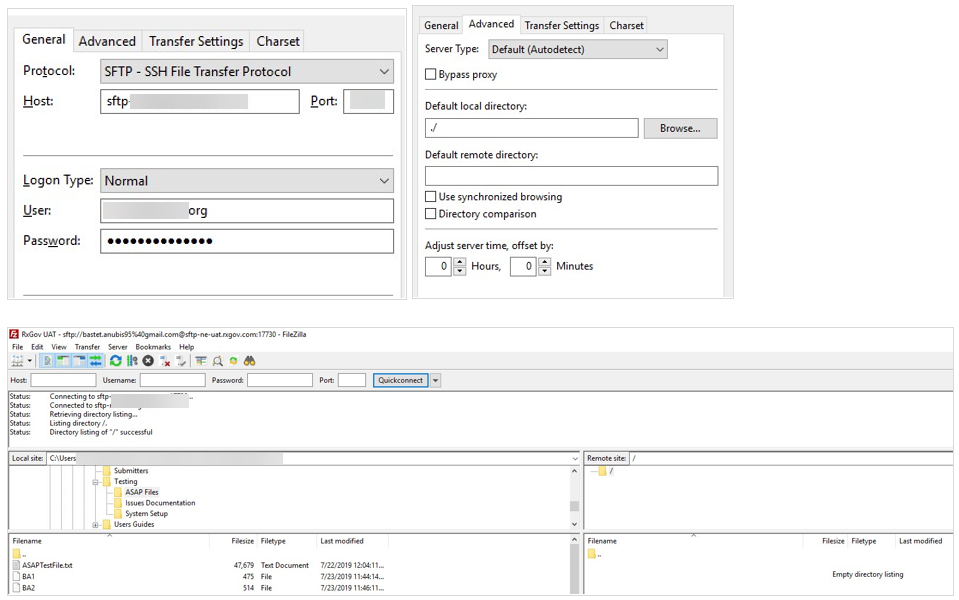
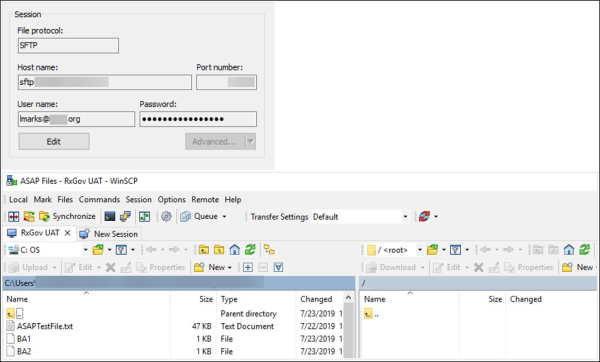
There are many free software products that support Secure FTP. The PDMP vendor, Leap Orbit, cannot direct or support your installation of operating system software for Secure FTP; however, once the software is set up in your specific environment, complete the following steps to submit files to RxGov using the Secure FTP over SSH method:
- Prepare the data file for submission using the American Society for Automation in Pharmacy (ASAP) specifications described in Appendix A: ASAP Specifications.
- Send the file to the appropriate SFTP URL and port determined by your Network Administrator.
- When prompted, enter your data submitter credentials (password will be provided by Leap Orbit via secure encrypted email upon user registration).
- Route the file to the Root Directory.
- If desired, view the results of the submission in the administration section of RxGov.
- Log off when the file submission is complete.
Filezilla Example:
WinSCP Example:
Submission Method #2: SSL Website (RxGov Portal)
Complete the following steps to submit files to RxGov using the SSL Website (RxGov Portal) method:
- Prepare the data file for submission using the American Society for Automation in Pharmacy (ASAP) specifications described in Appendix A: ASAP Specifications.
- Log on to RxGov.
- On the left menu, click Submit Data.
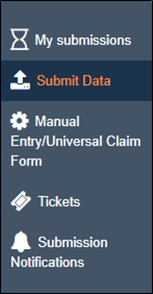
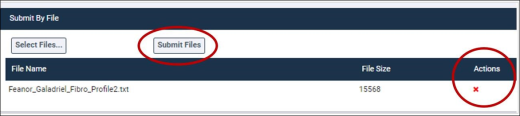
- In the Submit By File section, click Select Files.
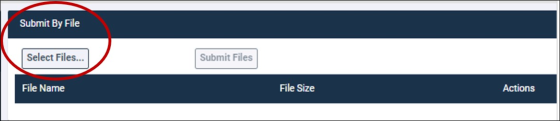
- Select the file to be submitted from the stored file location on your computer and click Open.
- If a file was selected by mistake, select the red x in the Actions column to remove it.
- When all desired files are listed, click Submit Files.
- (Optional) View the results of the submission in My Submissions.
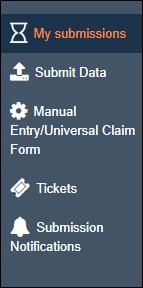
- Log off when the file submission is complete.
Submission Method #3: Manual Prescription Entry
Complete the following steps to submit files to RxGov using the Manual Prescription Entry method:
- Log on to RxGov.
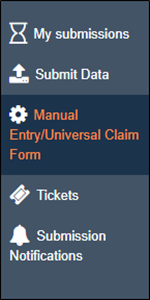
- On the left menu, select Manual Entry/Universal Claim Form.
- In the Pharmacy (Dispenser) Information section, enter the required information in the text fields (Required information is notated by red asterisks). For dispense of a controlled substance, DEA is required.
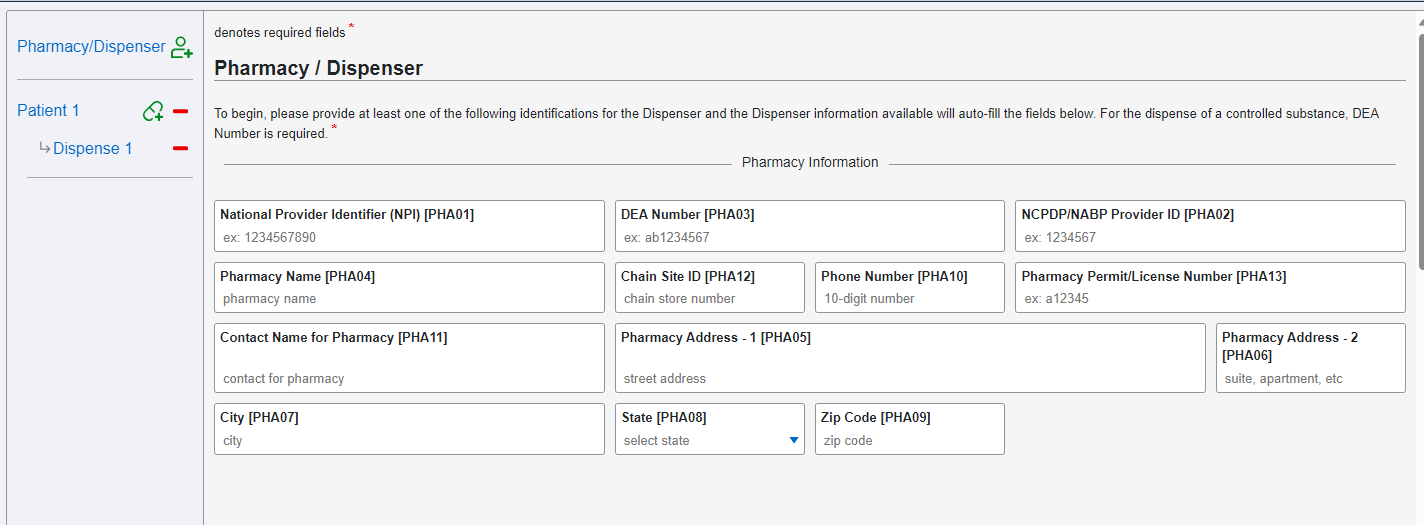
- Enter DEA Number
*Note: After entering a DEA or NPI, the available information from that data source will automatically populate. Please fill in any additional information.
- Pharmacy Name
- Address Information - 1
- Address Information - 2
- City Address
- State/Province
- Zip/Postal Code
- Phone Number
- Contact Name - First name and last name
- Pharmacy Name/Clinic Name
- Pharmacy street address/Clinic street address
- City
- State
- Zip code
- (Optional) Complete remaining blocks of information if desired.
- In the Patient Information section, enter the required information in the text fields (required information is notated by red asterisks).
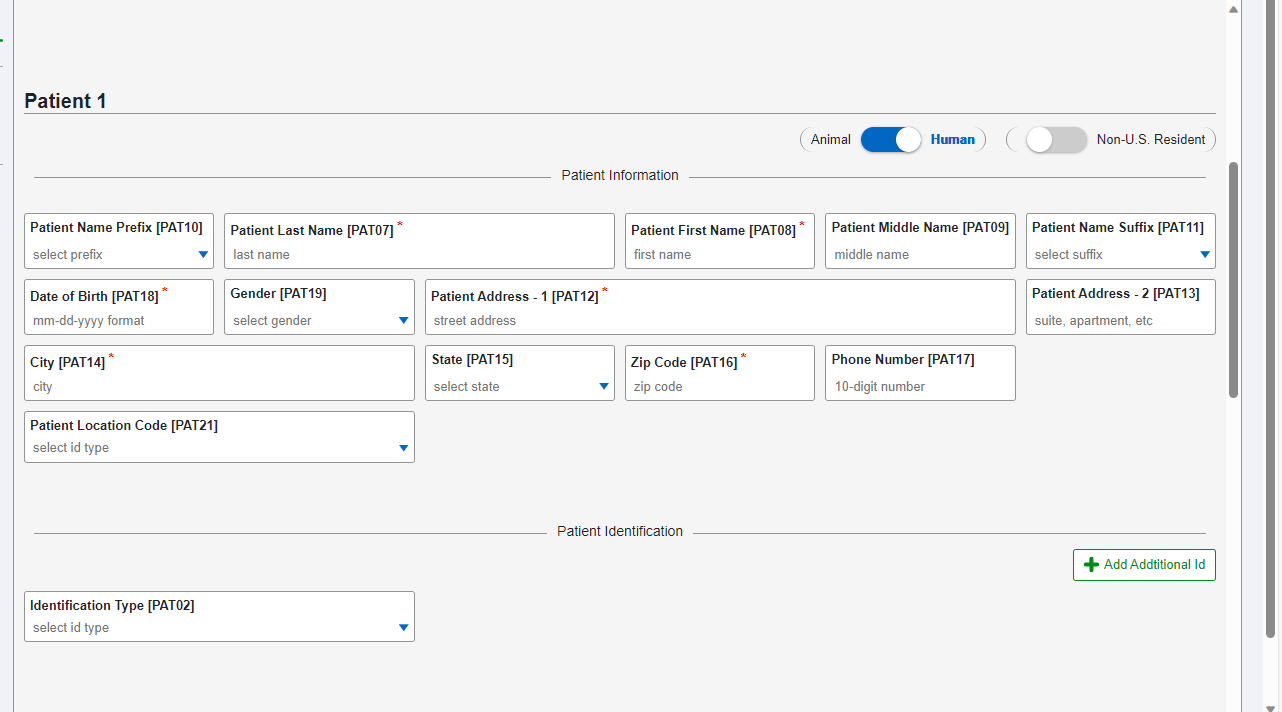
- Patient last name
- Patient first name
- Patient address, city, state, and zip code
- Patient date of birth
- Species code (human or veterinary patients)
- Type of ID qualifier (i.e. driver’s license number)
- Patient ID number
- (Optional) Enter any additional information
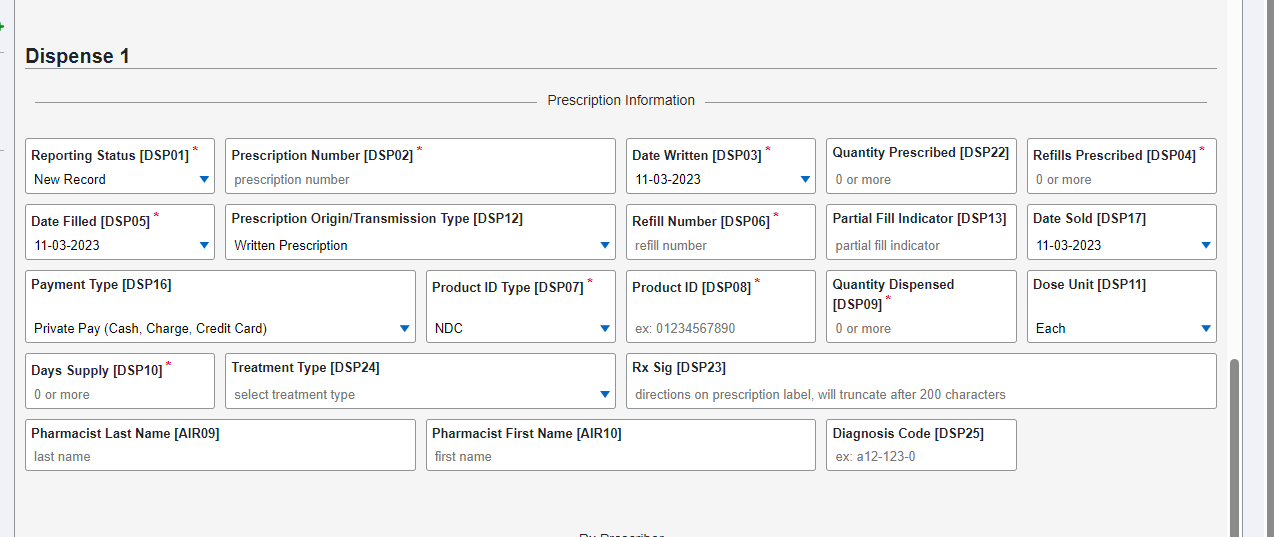
- In the Dispense Information section, enter the required information in the text fields (required information is notated by red asterisks).
- Reporting Status
- New Record - Status for a new Rx.
- Revise - Status of a record being edited.
- Void - Status for voided or canceled records.
- Prescription Number
- Date Written
- Refills Authorized
- Date Filled
- Refill Number
- 00 for original dispensing.
- 01 for first refill, 02 for second refill, etc. up to 99.
- Product ID Qualifier the drug National Drug Code (NDC)
- Product ID
- Quantity Dispensed
- Days’ Supply
- Drug Dosage Units Code (liquid or non-liquid)
- Partial Fill Indicator
- 00 for no partial fill
- 01 for first partial fill, 02 for the second partial refill, etc. up to 99.
- Quantity Prescribed
- Dispense Prescriber Information
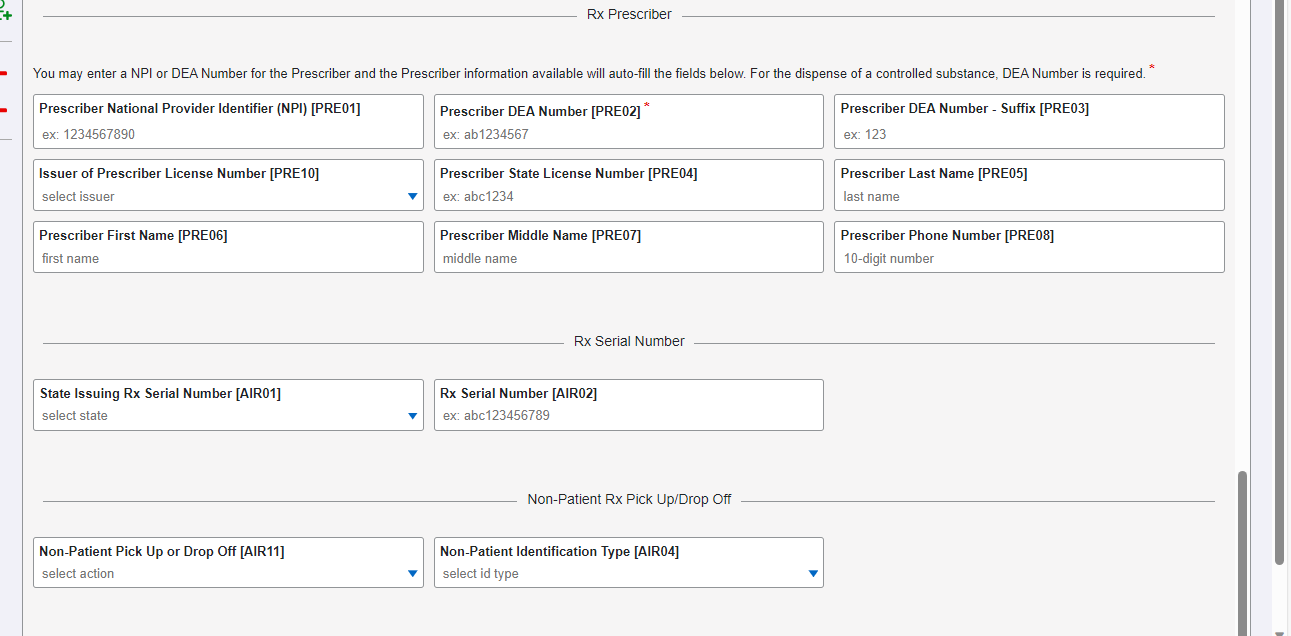
- In the Dispense Prescriber Information section, enter the required information in the text fields (required information is notated by red asterisks).
- DEA or NPI Number
- (Prescriber) Last Name
- (Prescriber) First Name
- (Prescriber) Phone Number
- (Optional) Complete additional information as needed.
*Note: After entering a DEA or NPI, the available information from that data source will automatically populate. Please fill in any additional information.
- DEA Number
- Pharmacy Name
- Address Information -1
- Address Information - 2
- City Address
- State/Province
- Zip/Postal Code
- Phone Number
- Contact Name - First name and last name
- (Optional) Enter additional information as necessary.
9. Dispense Compound Medication
If Compound is chosen in the Product ID Type [DSP07] field, 99999 will automatically be filled in the Product ID field [DSP08]. When this occurs, an additional Compound Drug Information section will appear.
Enter the ingredients for compounded medications.
- Sequence - The order of ingredients in the compound. The number 1 is used for the first ingredient, 2 for the second, etc.
- Product ID Type (usually drug NDC) - Provide the number.
- Quantity - Enter the quantity of the ingredient.
- Dosage Units Code – select the appropriate code from the dropdown options.
10. Click the Add button and more fields will appear for the next ingredient. Continue this process until all ingredients in the compound have been added.
- To Add a Dispense for the same patient, click the green pill with the + and another dispense section will be added.
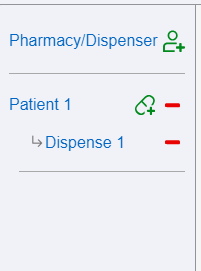
- To Add a Patient, click the green person icon with the + on the menu on the left side. A Patient 2 section will appear.
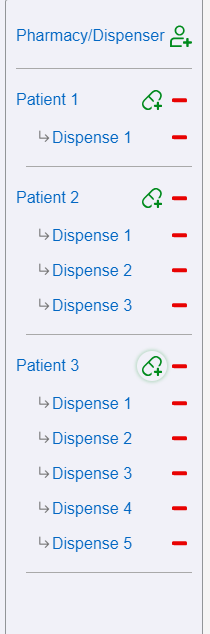
- Click the Submit UCF button when all data has been entered. If there are any errors on the screen, they will be indicated with a red box and information about the error. You will not be able to submit the dispense until all required information is present and indicated errors are corrected.
- If a manually-submitted report contains an error or needs to be voided, on the Submission History screen, click Manual Entry/Universal Claim Form and repeat the entire process.
View Submitted Reports
*Note: The submitter can only view records submitted via the account username/email.
Complete the following steps to view submitted reports in RxGov:
- Log on to RxGov.
- On the main dashboard, select My Submissions in the left menu.
- On the Submission History page, use the Start Date and End Date calendar menus to select the dates for viewing data. Refine the search by selecting one or more of the following checkboxes:
*Note: After selections are made, the submission history search runs automatically.
- Only Show Files w/ Errors
- Hide Resolved Files
- Hide Files w/ Fatal Errors
*Note: See Appendix C: Submission History Errors and Messages for a full list of possible Submission History error messages and descriptions.
- Click the Refresh
 icon to update the displayed data.
- (Optional) Use the density controls to adjust displayed row formatting.
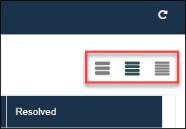
- (Optional) Select the Rows per page drop-down menu to adjust the number of displayed rows.
- (Optional) Use the pagination controls to jump to the next page, previous page, the first page, the last page, or enter a specific page number in the Go to page field and click GO to immediately open the page desired.
- Click anywhere in the row containing the data to view the submitted data.
- On the Submission History page, in the File Contents section, click the menu arrow next to a patient name to expand and view details about the patient.
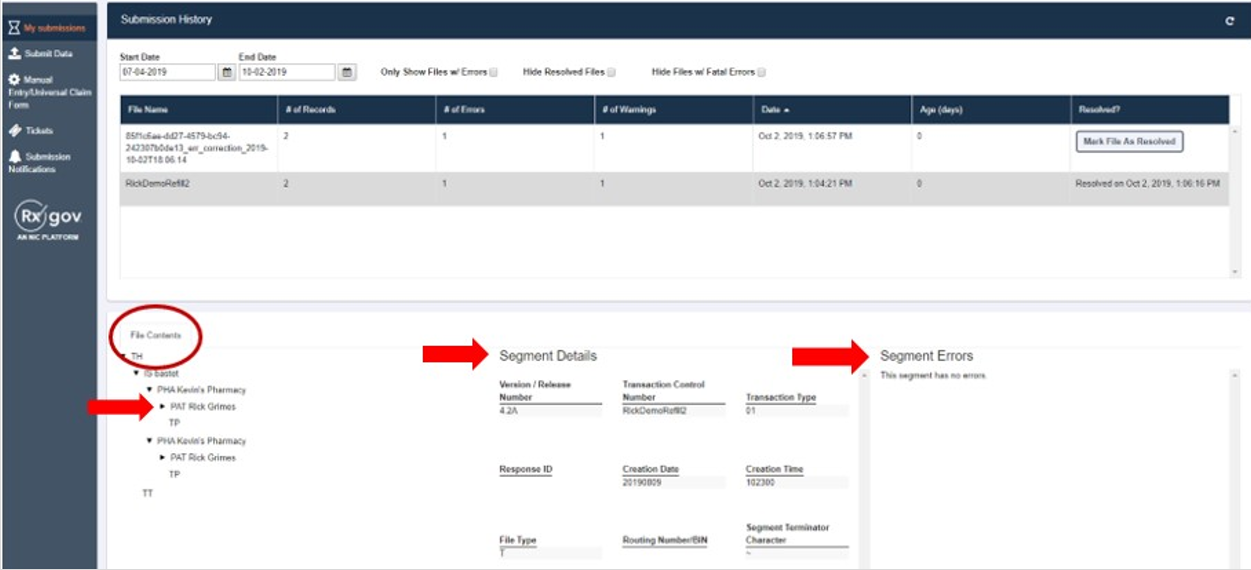
- View additional dispensing information in the Segment Details section and the Segment Errors section.
- (Optional) Click the menu arrows in the File Content section to display further information.
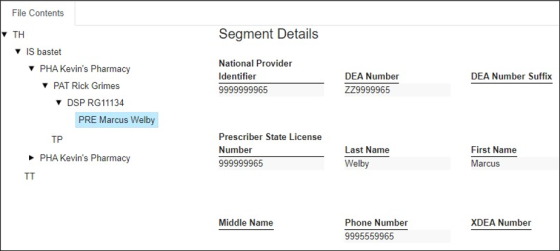
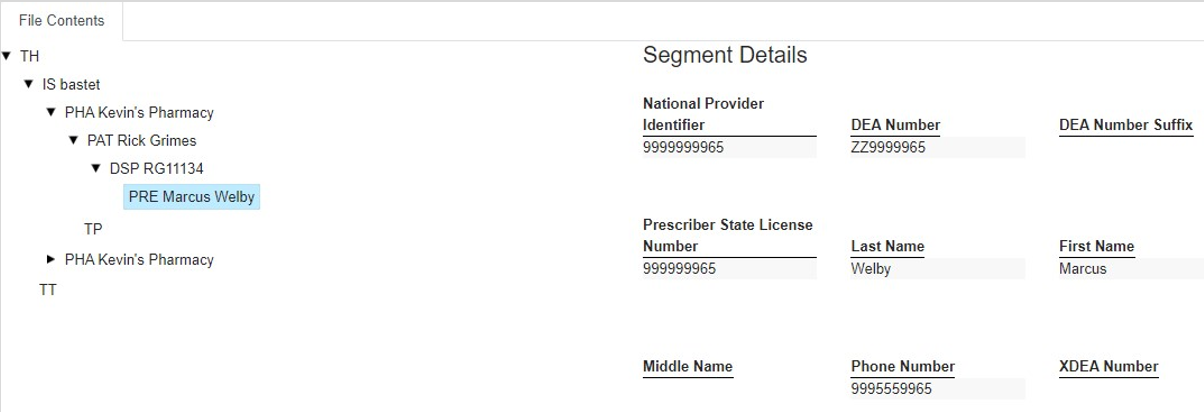
- Patient information is displayed in the Segment Details section when the PAT line is highlighted.
- Prescription information is displayed in the Segment Details section when the DSP line is highlighted.
- Prescriber information is displayed in the Segment Details section when the PRE line is highlighted.
Manually Resolve Unresolved Files
Files that have been corrected by a new submission may not include all key components required to resolve the original file. When this occurs, a notification email continues to be sent until the file is updated to a resolved status. Users can manually resolve files to update the file status and stop the email notification.
*Note: All errors in the previously submitted file must be corrected before manually changing the file status to Resolved. If files are resolved manually without correcting the error in the data, the dispenses containing errors will not be loaded and will result in invalid data being reported.
Complete the following steps to manually resolve a submission file status.
- Log on to RxGov.
- On the main dashboard, select My Submissions in the left menu.
- On the Submission History page, use the Start Date and End Date calendar menus to select the dates for viewing data. Refine the search by selecting one or more of the following checkboxes:
*Note: After selections are made, the submission history search runs automatically.
- Only Show Files w/ Errors
- Hide Resolved Files
- Hide Files w/ Fatal Errors
- In the Submission History section, select the Mark File as Resolved button in the corresponding row of an unresolved file.
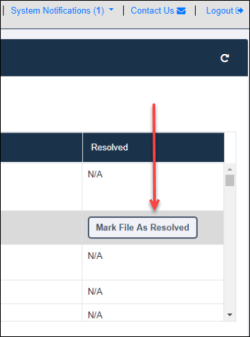
- Select one of the following options on the displayed confirmation window:
- OK – Updates file unresolved status to “resolved” and provides a date and time stamp for the update.
- Cancel – Confirmation window closes, and the file status remains unchanged.
Submission Notifications
Notifications can be configured during setup by the Submitter to send an email alert for a variety of situations and frequencies. The schedule for sending the email alerts is determined by the Submitter; however, the email will continue to be sent or queued to be sent until the error is resolved and properly uploaded into the PDMP.
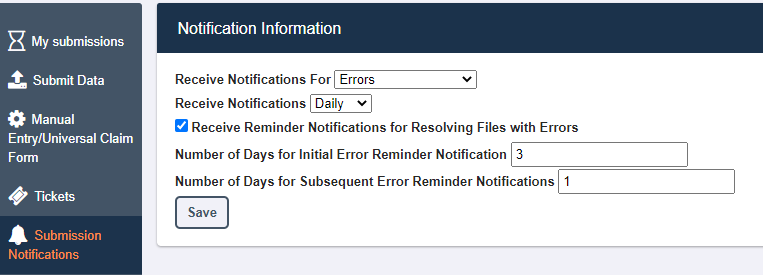
Complete the following steps to configure Submission Notifications.
- On the Submissions Notifications menu, under the Notification Information section, select one of the following options from the Receive Notifications For drop-down menu:
- Nothing
- Errors
- Errors and Warnings
- All Submissions
- Select one of the following frequency options from the Receive Notifications drop-down menu:
- Hourly
- Daily
- (Optional) Select the Receive Reminder Notifications for Resolving Files with Errors checkbox.
- Enter a number in the Number of Days for Initial Error Reminder Notification text field.
- Enter a number in the Number of Days for Subsequent Error Reminder Notifications text field.
- Click Save.
DEA Validation
As a user, when submitting ASAP files via the user interface (UI), SFTP, UCF file, or when submitting Zero reports, the dispenser and prescriber DEA number must be validated to avoid incorrect DEA numbers from being submitted into the system.
DEA Validation occurs when the following events occur:
- A DEA number is entered during dispense submission.
- When a previously submitted DEA number is updated or edited in error corrections functionality.
When a DEA number is entered, it must be entered in a valid format. Additionally, the DEA number entered must match the DEA Registrant file. If the entered DEA number is not valid, an error or a warning is displayed depending on which parameter is invalid.
- An error – If the file is uploaded, but the dispense is not, the user must correct the dispense record from the RxGov UI or submit a new file.
- A warning – If the file and the dispense are uploaded, the user may correct the DEA number from the RxGov UI if it is incorrect or ignore the warning if the user is certain that the value is correct.
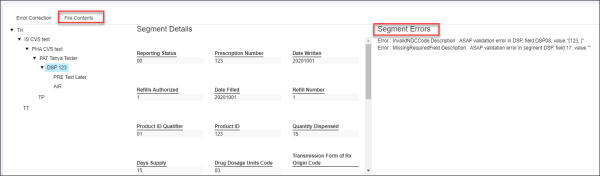
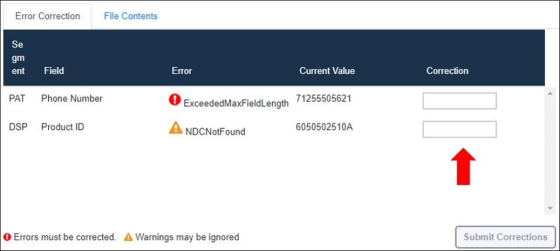
Errors and warnings are displayed in the Submission History page in the My Submissions menu. If allowed, corrections can be made in the Correction text box under the Error Correction tab.
To view further details regarding the errors listed, view the Segment Errors section under the File Contents tab on the Submission History page under the My Submissions menu.
Expected DEA Validation Outcomes
The DEA Validation process presents certain messages when the entered DEA number is not in a valid format or does not match the DEA Registrant file. Validation outcomes vary depending on the RxGov feature being performed. For example, invalid DEA number entries present different outcomes during initial registration, while editing a user profile in the User Management Menu, or while submitting a file in the various file submission methods. The following descriptions provide an outline of expected DEA Validation outcomes for each feature being performed.
ASAP File Submission DEA Validation
While submitting an ASAP file, the following DEA Validation outcomes are expected.
- Outcome when the entered DEA number is not in a valid format: The DEA number is required for both the dispenser and the prescriber (unless the dispense is for naloxone, then the DEA number or the NPI number for the prescriber will be accepted with the same caveat). When either DEA does not meet validation rules for format, an error for that dispense is displayed. The dispense is rejected and the data submitter must correct the error within 3 business days.
- Outcome when the DEA number entered does not match the DEA number on file - If the Dispenser or Prescriber DEA number does not match the DEA Registrant file, a warning for that dispense is displayed. In these cases, RxGov will validate that the DEA number is in the correct format and will check the DEA number retroactively when the new monthly DEA registrant file is received.
SFTP File Submission DEA Validation
While submitting an SFTP file, the following DEA Validation outcomes are expected.
- Outcome when the entered DEA number is not in a valid format: The DEA number is required for both the dispenser and the prescriber. When either DEA does not meet validation rules for format, an error for that dispense is displayed. The dispense is rejected and the data submitter must correct the error within 3 business days.
- Outcome when the DEA number entered does not match the DEA number on file - If the Dispenser or Prescriber DEA number does not match the most recent DEA file, a warning for that dispense is displayed. The data submitter must review the DEA number and correct it if it was entered erroneously. There are rare occasions when the DEA number is new and may not match the DEA Registrant file.
Universal Claim Form (UCF) File Submission DEA Validation
While submitting a file via Universal Claim Form, the DEA number format and DEA file validation is automatically verified upon entry. The following DEA Validation outcomes are expected.
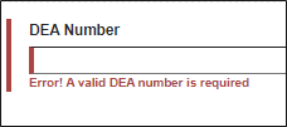
- Outcome when the entered DEA number is not in a valid format: The DEA number is required for both the dispenser and the prescriber (unless the dispense is for naloxone, then the DEA number or the NPI number for the prescriber will be accepted with the same caveat). When either DEA does not meet validation rules for format, the manual submission is not processed until a DEA number (Dispenser and Prescriber) with a valid format is provided. The user cannot continue until the format in the DEA field is correct.
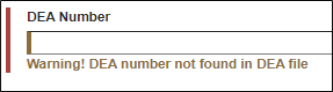
- Outcome when the DEA number entered does not match the DEA number on file - The manual submission is processed; however, a warning for the DEA number (Dispenser or Prescriber) is displayed and the user may either correct the value or do nothing if they know the submitted number is a valid DEA number. The data submitter must review the DEA number and correct it if it was entered erroneously. There are rare occasions when the DEA number is new and may not match the DEA Registrant file.
Zero Report File Submission DEA Validation
While submitting a Zero Report, the following DEA Validation outcomes are expected.
- Outcome when the entered DEA number is not in a valid format – The DEA number is required for the dispenser. When the DEA number does not meet the validation rules for format, the report submission is not processed until a DEA number with a valid format is provided. The user cannot continue until the format in the DEA field is correct.
- Outcome when the DEA number entered does not match the DEA number on file – The Zero Report is processed. A warning for the Dispenser DEA number is displayed. The user may either correct the value or do nothing if they know the DEA number submitted in the report is valid. The data submitter must review the DEA number and correct it if it was entered erroneously. There are rare occasions when the DEA number is new and may not match the DEA Registrant file.
Error Correction
Data file error alerts are sent to the Submitter from RxGov when an error occurs. There are three error types: Error, Warning, and Fatal Error. When the file is selected within My Submissions, the details of the error are displayed in the bottom half of the screen. Errors may be corrected within the RxGov My Submission page or corrected within the file by the Submitter or by the Submitter’s Uploader Vendor.
Viewing Errors & Warnings
Complete the following steps to view and correct errors within RxGov:
- On the Submission History page, in the My Submissions section, review the details of file errors, or click the email link provided in the RxGov email.
- Determine which of the following three error types are associated with the file:
- Error - Errors are defined as simple data errors that may be corrected inside the submission file through RxGov or corrected in the ASAP file and resent. If the errors are not corrected, this dispense will not become part of the PDMP.
- Warning - Warnings are defined as simple data errors that can be corrected inside the submission file through RxGov but are not required to be corrected to proceed. If the warnings are not corrected, this dispense will still become part of the PDMP.
- Fatal Error - Fatal Errors are defined as errors which cannot be corrected in the submission file through RxGov. The file must be corrected by the Submitter or by the Submitter’s Vendor and resubmitted to RxGov. No dispenses in this file will be uploaded to the PDMP.
- In the My Submissions section, under the Error Correction tab, select the file to display the details of the error on the bottom half of the screen. Click the File Contents tab to view the contents of the submission segment by segment in the context of the warning or error:
- Click the Correction text box to display more information in the Dispense Context. The Dispense Context drop-down menu contains options for searching through the submitted prescription.
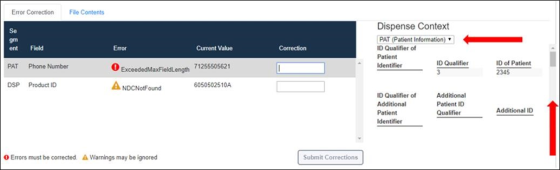
- (Optional) Scroll down to view content in the Dispense Context screen.
*Note: Submit Corrections is not an option until the error is addressed. A correct value must be entered. Once a corrected value is entered, a green check mark is displayed in the Correction column.
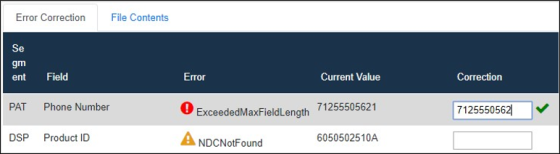
- (Optional) An Errors & Warnings file associated with a submission may also be downloaded (.CSV format) for a comprehensive report of all errors and warnings for a given submission:
The file will contain the following fields to help you troubleshoot and diagnose the error or warning: Row ID, Rx Number, Segment, Field, Segment Details, Error Type, Error Message, Current Value
- When the error has been corrected, click Submit Corrections. A Success box is displayed.
After the file has been corrected, the system creates a new file with the corrected information and resolves the file.
Revise a Record
Complete the following steps to revise a record:
- Create a record with the value 01 in the DSP01 field.
- Populate the following fields with the same information originally submitted on the erroneous record:
*Note: If any of the fields referenced in step 2 are part of the correction, the record must first be voided using the steps provided in the Void a Record section, then the record must be resubmitted using the value 00 in the DSP01 field.
- PHA03 (DEA Provider ID)
- DSP02 (Prescription Number)
- DSP05 (Date Filled)
- Fill in all other data fields with the correct information. This information overrides the original data linked to the fields referenced in step 2.
- Submit the record.
Void a Record
Complete the following steps to void a record:
- Create a record with the value 02 in the DSP01 field.
- Fill in all other data identical to the original record. This voids the original record submission.
- Submit the record.
Zero Reports
The Zero Reports function in RxGov allows data submitters to submit zero reports and to view previously-submitted zero reports. Zero report information is displayed on the Submission History page with other submitted data for a selected time.
Submission of Zero Report
Complete the following steps in RxGov to submit a zero report:
- Log on to RxGov.
- Select Submit Data from the left menu.
- In the Submit Zero Report section, enter the Date for Zero Report of the report to be viewed.
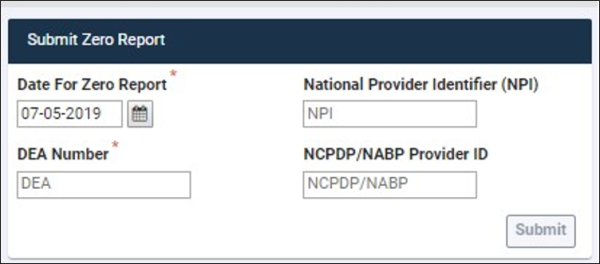
- Enter the DEA information.
*Note: DEA Validation occurs upon number entry. If an invalid DEA number is entered, a warning or error message is displayed indicating the DEA number is invalid or not found.
- Enter the DEA information.
- Click Submit.
View Previously-Entered Zero Reports
Complete the following steps in RxGov to view previously-entered zero reports:
- Log on to RxGov.
- Select My Submissions in the left menu.
- On the Submission History page, use the Start Date and End Date calendar menus to select the date range of the report to be viewed.
*Note: Zero reports and full data upload files are displayed in the same list within the My Submissions section.
- (Optional) Enter optional search parameters or select checkboxes to refine the search as necessary.
- Sort by file name and scroll through the alphabetical list until reaching the report in the Zero Report section.
- Click the report name to open the report and view details.
Pharmacy Admin/Submitter Delegate & Dispense Corrections
 Submitters may now grant access to other individuals, to assist with error correction. Submitters will automatically be given privileges as Store Admins. This designation allows them to approve or deny requests by individuals to become either Submitter Delegates or Store Admins. Store Admins can approve or deny requests for others to become Store Admins or Submitter Delegates in addition to error correction, whereas Submitter Delegates can only perform error corrections.
All users that have a role type of Submitter, Submitting Prescriber, Dispenser, Dispenser Delegate, Submitting Dispenser, and Admin will have a “Manage Pharmacies” menu item on the main menu of RxGov.
Click on Manage Pharmacies to view the “My Pharmacies” tab and the green “Add New Pharmacy” button.
To request access to the errors from a pharmacy, click on the Add New Pharmacy button in the upper right corner.
Pharmacies may be searched by name, DEA number, or NPI number. Only pharmacies provided by the state are available to search; therefore, if you are unable to locate your pharmacy, please check with your state administrators. Names are case sensitive so if you are unable to locate the pharmacy by name, please use the DEA or NPI number. Once a valid entry is detected, the matching Pharmacy will display. Choose a pharmacy by clicking the open box to the left and choose the requested role. Click the desired role and the Submit button will be available to submit the request.
Pending requests will appear on the Pharmacy Admin page.
Once approved by the Store Admin, the Dispense Correction menu item will appear on the main menu and you will gain access to the errors and warnings for that pharmacy.
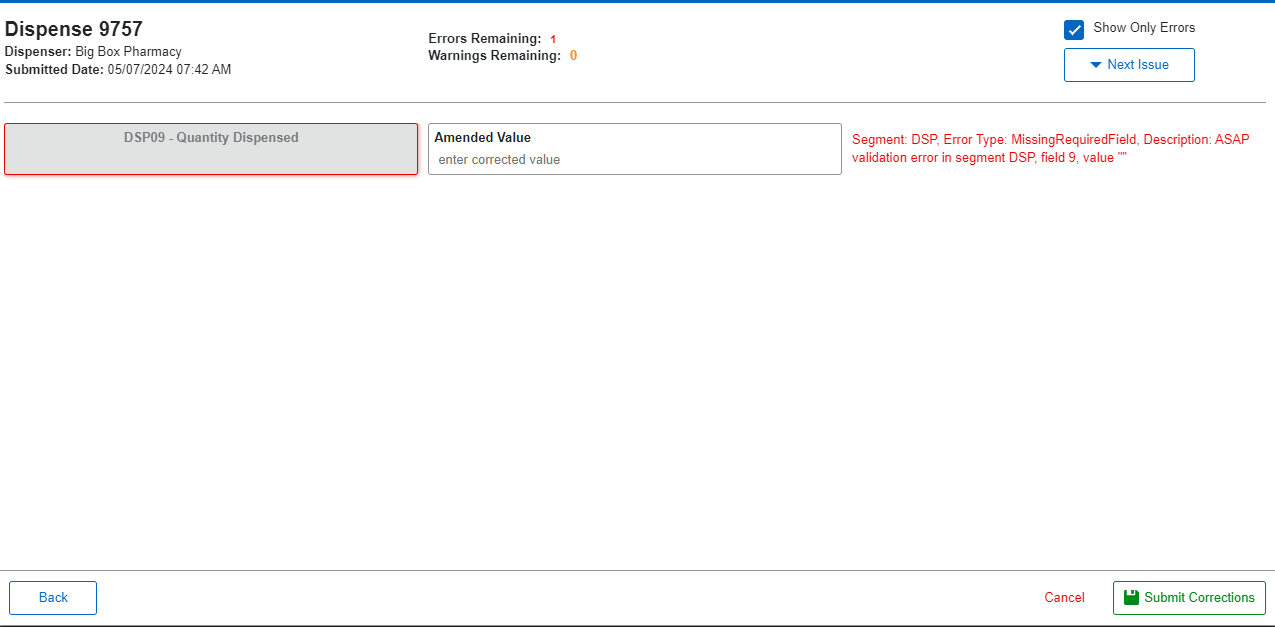
Once you click on Dispense Correction, you will be able to see dispenses with Errors and Warnings. If you have access to more than one pharmacy, there is a drop-down box at the top of the Dispense Correction page that can be used to choose the pharmacy you wish to work on at that time. Leaving it on ALL will show all dispenses with Errors/Warnings from all your associated pharmacies.
Once you select a pharmacy or multiple pharmacies, you will see all dispenses displayed. There are also filters at the top for Start and End Dates, as well as an option to have only dispenses with open (noncorrected) errors displayed.
If a dispense has no errors or warnings, the Dispenses button will be grayed out. Only dispenses with errors or warnings will allow you to open them.
Clicking on the Dispenses button will display each dispense with an error or warning individually allowing you to correct them one at a time and submit them individually if you don’t have time to correct all of them in a single session.
Assistance and Support
If you have questions regarding data submission, please contact rxgovsupport@leaporbit.com or call (888) 514-6865 (24/7/365).
Glossary
ASAP - American Society for Automation in Pharmacy.
Batch - Group of files (report or query requests) that are processed in the background while other work is continued.
Data Submitter - A user who submits a data file containing controlled substance dispensing information.
Dispense - The procedure that results in the receipt of a prescription drug by a patient or the patient’s agent, and which entails the
- Interpretation of an authorized prescriber’s prescription for a drug or device.
- Selection and labeling of the drug or device prescribed pursuant to that prescription.
- Measuring and packaging of the prescribed drug or device in accordance with state and federal laws.
.
Dispenser - A pharmacy or prescriber authorized by law to dispense a monitored prescription drug to a patient or a patient’s agent in the State, including a nonresident pharmacy.
FTP - File Transfer Protocol; commonly used protocol for exchanging files over any network.
NDC - National Drug Code; describes specific drugs by drug manufacturer and package size.
PDMP - Prescription Drug Monitoring Program.
Prescriber - A practitioner who is lawfully authorized to prescribe a monitored prescription drug; and
registered with the federal Drug Enforcement Administration in accordance with 21 USC 822 Part C and 21 CFR Part 1301.
RxGov - Prescription drug monitoring system owned by Leap Orbit, LLC.
SFTP - Secure File Transfer Protocol (also referred to as “SSH File Transfer Protocol”); provides file transfer and manipulation functionality over any reliable data stream.
SSL - Secure Sockets Layer; cryptographic protocol that provides secure communications for data transfers.
UCF - Universal Claim Form; electronic form used by a dispenser that has internet access but is unable to submit its data in a batch submission.
Appendix A: ASAP Specifications
The following information contains the definitions for the specific contents required for uploading records (reporting) in the American Society for Automation in Pharmacy (ASAP) format to comply with the Prescription Drug Monitoring Program (PDMP) requirements.
Data Type Notation Matrix
Data Type Notation | Data Type | Character Set / Format |
AN | Alphanumeric | Upper-case and lower-case alphabets: A to Z, a to z Numbers: 0 to 9 Printable characters: ~`!@#$%^&*()-_=+{}[]\|';:"<>,.?/ |
DT | Date | Format: CCYYMMDD
|
TM | Time | Format: HHMMSS or HHMM in 24 hours clock system (military format)
|
N | Numeric | Used for a whole number, decimal not allowed |
D | Decimal | Used for metric decimal. If whole number used, decimal not allowed. |
File Naming Convention
- The uploaded files must be unique; no spaces allowed.
- File ID is assigned by the submitter or dispenser system to uniquely identify the uploaded file.
- DateTimestamp is the date and time of the file submission represented in the following format: CCYYMMDDHHMMS (example: 20170102160000).
Data Elements Within File
- Segment Identifier - Indicates the beginning of a new segment (i.e. PHA).
- Field Delimiter - Character used to separate fields or data elements within a segment (i.e. an asterisk*).
- Each blank field should contain a single field delimiter.
- If the last field in the segment is blank, it should be followed by the Segment Terminator.
- Segment Terminator - Character used to mark the end of a segment (i.e. the tilde ~).
- Field TH09 in the Transaction Header segment contains a built-in segment terminator. Since TH09 also signifies the end of the segment, it should contain two tildes (~~).
Field Usage
.
- R - Required by American Society for Automation in Pharmacy (ASAP)
- RR - Required by the State PDMP
- S - Situational (not required; however, supply if available)
- Both R and RR fields must be reported. If the field is now required and was not required in the past, it is bolded with an asterisk*.
Note: For more information regarding ASAP specifications, please reference the ASAP website at https://asapnet.org/ for the full Implementation Guide for the ASAP Standard for Prescription-Monitoring Programs.
Field | Field Name | Size | Description | Field Usage |
TH: Transaction Header: Required segment; used to indicate the start of a transaction. It also assigns the data element separator, segment terminator, and control number. | ||||
TH01 | Version/Release Number | AN4 | Code uniquely identifying the transaction. Value = 4.2, 4.2A, or 4.2B | R |
TH02 | Transaction Control Number | AN40 | Sender assigned code uniquely identifying a transaction. This number must be used in TT01. Recommendation: Use a Globally Unique Identifier (GUID) or other non repeating alphanumeric combination to populate this field. | R |
TH03 | Transaction Type | N2 | Identifies the purpose of initiating the transaction. | S |
01 = Send/Request Transaction. | ||||
02 = Acknowledgement (in Response only). | ||||
03 = Error Receiving (in Response only). | ||||
04 = Void (Used to void a specific Rx in a real-time transmission or an entire batch that has been transmitted. When 04 is used, the appropriate control number in TH02 for the specific transaction or batch file must be included. When 04 is used only, the TH Header Segment and the Transaction Trailer Segment are used). | ||||
TH04 | Response ID | AN40 | Contains the Transaction Control Number of a transaction that initiated the transaction. Required in response transaction only. | S |
TH05 | Creation Date | DT8 | Date the transaction was created: CCYYMMDD | R |
TH06 | Creation Time | TM6 | Time the transaction was created: HHMMSS or HHMM | R |
TH07 | File Type | AN1 | Code specifying the type of transaction. P = Production; T = Test | R |
TH08 | Routing Number/BIN | N6 | Can be used for real-time transmissions that go through an intermediary or network switch to indicate, if necessary, the specific state that the transactions should be routed to. | S |
TH09 | Segment Terminator Character | AN1 | This terminates the TH segment and sets the actual value of the data segment terminator for the entire transaction. | R |
IS: Information Source: Required segment; used to convey the name and identification numbers of the entity supplying the information. | ||||
IS01 | Unique Information Source ID | AN10 | Reference number or identification number as defined by the business partners. | R |
IS02 | Information Source Entity Name | AN60 | Entity name of the Information Source. | R |
IS03 | Message | AN60 | Freeform text message. | S |
PHA: Pharmacy Header: Required segment; used to identify the pharmacy. | ||||
PHA01 | National Provider Identifier (NPI) | AN10 | Identifier assigned to the pharmacy by CMS. | S |
PHA02 | NCPDP/NABP Provider ID | AN7 | Identifier assigned to the pharmacy by the National Council for Prescription Drug Programs (NCPDP). | S |
PHA03 | DEA Number | AN9 | Identifier assigned to the pharmacy by the Drug Enforcement Administration (DEA). Must be reported if any prescriptions are controlled substances. | RR |
PHA04 | Pharmacy or Dispensing Prescriber Name | AN60 | Name of the Pharmacy or Dispensing Prescriber. Note: If a dispensing prescriber, the prescriber’s name and professional degree should be entered, such as John Doe MD. | S |
PHA05 | Address Information – 1 | AN55 4.2B | Free-Form Address information. | S |
PHA06 | Address Information - 2 | AN55 4.2B | Free-Form Address information. | S |
PHA07 | City Address | AN35 | City name. | S |
PHA08 | State Address | AN2 | US postal service state code. | S |
PHA09 | Zip Code | AN9 | US postal zip code. Exclude hyphen. 4.2B | S |
PHA10 | Phone Number | AN10 | Complete phone number including area code. Exclude hyphens or other punctuation. 4.2B | S |
PHA11 | Contact name | AN30 | Contact person name. | S |
PHA12 | Chain Site ID | AN10 | Store number assigned by the chain to the pharmacy location. | S |
PHA13 4.2A | Pharmacy Permit/License # | AN20 | Use to help identify sending pharmacy | S |
PAT: Patient Information: Required segment; used to report the patient’s name and basic information as contained in the pharmacy record. | ||||
PAT01 | ID Qualifier of Patient Identifier | AN2 | Code identifying the jurisdiction that issues the ID in PAT03. | S |
PAT02 | ID Qualifier | N2 | Code to identify the type of ID in PAT03. OR OWNER or Handler | RR* |
01 = Military ID | ||||
02 = State Issued ID | ||||
03 = Unique System ID | ||||
04 = Permanent Resident Card | ||||
05 = Passport ID | ||||
06 = Driver’s License ID | ||||
07 = Social Security Number | ||||
08 = Tribal ID | ||||
09 = Vendor Specific (such as Appriss Health, Experian, LexisNexis) 4.2B | ||||
10 = Veterinary Patient Microchip Number 4.2B | ||||
99 = Other (agreed upon ID) | ||||
PAT03 | ID of Patient | AN20 | Identification number for the patient as indicated in PAT02. For PAT02 Codes 09 & 10, this field can only be populated when this identifier is provided on the prescription. 4.2B | RR |
PAT04 | ID Qualifier of Additional Patient Identifier | AN2 | Code identifying the jurisdiction that issues the ID in PAT06. See Appendix A for list for jurisdictions. | S |
PAT05 | Additional Patient ID Qualifier | N2 | Code to identify the type of ID in PAT06. If PAT05 is used, PAT06 is required. | S |
01 = Military ID | ||||
02 = State Issued ID | ||||
03 = Unique System ID | ||||
04 = Permanent Resident Card | ||||
05 = Passport ID | ||||
06 = Driver’s License ID | ||||
07 = Social Security Number | ||||
08 = Tribal ID | ||||
09 = Vendor Specific (such as Appriss Health, Experian, LexisNexis) 4.2B | ||||
10 = Veterinary Patient Microchip Number 4.2B | ||||
99 = Other (agreed upon ID) | ||||
PAT06 | Additional ID | AN20 | Identification number for the patient as indicated in PAT05. For PAT05 Codes 09 & 10, this field can only be populated when this identifier is provided on the prescription. 4.2B | S |
PAT07 | Last Name | AN50 | Patient’s last name. If a patient has one name, list it as both the first and last name. If the prescription is written by a veterinarian, enter owner’s or handler’s last name. | RR |
PAT08 | First Name | AN50 | Patient’s first name. If a patient has one name, list it as both the first and last name. If the prescription is written by a veterinarian, enter owner’s or handler’s first name. | RR |
PAT09 | Middle Name | AN30 | Patient’s middle name. | S |
PAT10 | Name Prefix | AN10 | Patient’s name prefix such as Mr or Dr | S |
PAT11 | Name Suffix | AN10 | Patient’s name suffix such as Jr or the III | S |
PAT12 | Address Information – 1 | AN55 4.2B | Address Line 1 of the patient. | RR |
PAT13 | Address Information - 2 | AN55 4.2B | Address Line 2 of the patient. | S |
PAT14 | City Address | AN35 4.2B | City of residence of the patient. | RR |
PAT15 | State/Jurisdiction Code | AN10 | Valid state/jurisdiction code. | RR |
PAT16 | Zip Code | AN9 | US postal zip code of the patient. Populate with zeros (‘00000’) if patient address is outside the U.S. Exclude hyphen. 4.2B | RR |
PAT17 | Phone Number | AN10 | Complete phone number including area code. *Note: Phone number is required, if available. Exclude hyphens or other punctuation. | RR |
PAT18 | Date of Birth | DT8 | Date of birth of the patient: CCYYMMDD; If the prescription is written by a veterinarian, enter owner or handler’s DOB. | RR |
PAT19 | Gender Code | AN1 | Value: F = Female; M = Male; U = Unknown/Undisclosed | RR |
PAT20 | Species Code | N2 | Value: 01 = Human; 02 = Veterinary Patient | RR* |
PAT21 | Patient Location Code | N2 | Code indicating where the patient is located when receiving pharmacy services. | S |
01 = Home | ||||
02 = Intermediary Care | ||||
03 = Nursing Home | ||||
04 = Long-Term/Extended Care | ||||
05 = Rest Home | ||||
|
|
| 06 = Boarding Home |
|
07 = Skilled-Care Facility | ||||
08 = Sub-Acute Care Facility | ||||
09 = Acute-Care Facility | ||||
10 = Outpatient | ||||
11 = Hospice | ||||
98 = Unknown | ||||
99 = Other | ||||
PAT22 | Country of Non-U.S. Resident | AN20 | Used when the patient's address is in a foreign country, and PAT12 through PAT16 are left blank. This is a freeform text field. | S |
PAT23 | Name of Animal | AN30 | Required if PAT20 = 02 Veterinary Patient. | S |
DSP: Dispensing Record: Required segment; used to identify the basic components of a dispensing of a given prescription order including the date and quantity. | ||||
DSP01 | Reporting Status | N2 | DSP01 requires one of the following codes. An empty or blank field no longer indicates a new prescription transaction. 00 = New Record (indicates a new prescription dispensing transaction) 01 = Revise (indicates that one or more data element values in a previously submitted transaction are being revised) 02 = Void (message to the PDMP to remove the original prescription transaction from its data, or to mark the record as invalid or to be ignored). | R |
DSP02 | Prescription Number | AN25 | Serial number assigned to the prescription by the pharmacy. | R |
DSP03 | Date Written | DT8 | Date the prescription written (authorized): CCYYMMDD | R |
DSP04 | Refills Authorized | N2 | Number of prescriber authorized refills. | R |
DSP05 | Date Filled | DT8 | Date prescription was prepared: CCYYMMDD | R |
DSP06 | Fill Number (Relabeled from “Refill Number” 4.2B) | N2 | Number of the fill of the prescription. 0 = original dispensing; refills = 01-99 | R |
DSP07 | Product ID Qualifier | N2 | Type of product ID contained in DSP08. | R |
01 = NDC | ||||
02 = UPC | ||||
03 = HRI | ||||
04 = UPN | ||||
05 = DIN | ||||
06 = Compound (See DSP08) (CDI segment required if used) | ||||
DSP08 | Product ID | AN15 4.2A | Full product identification as indicated in DSP07, including leading zeros without punctuation. | R |
NDC must be 11-digits. | ||||
If the product is a compound, populate with 99999 as the first five characters of the product code. The remaining six digits are assigned by the pharmacy. The CDI then becomes a required segment. Note: If a controlled substance is part of a kit, the NDC of the kit should be reported as long as it is a legitimate manufacturer’s NDC. If not, the NDC of the controlled substance within the kit should be reported. Also, if the multiple controlled substances are in the kit, use the CDI segment to report it as a compound. | ||||
DSP09 | Quantity Dispensed | D11 | Number of metric units dispensed in metric decimal format. Example: 2.5. Note: For compounds, show the first quantity in CDI04. The format allows for 5 digits to the left and right of the decimal (i.e., 99999.99999). | R |
DSP10 | Days Supply | N3 | The calculated or estimated number of days the medication will cover. | R |
DSP11 | Drug Dosage Units Code | N2 | Identifies the unit of measure for the quantity dispensed in DSP09. | RR* |
01 = Each (used to report solid dosage units or indivisible package). | ||||
02 = Milliliters (ml) (adjust liters to the decimal milliliter equivalent). | ||||
03 = Grams (gm) (adjust milligrams to the decimal gram equivalent). | ||||
DSP12 | Transmission Form of Rx Origin Code | N2 | Code indicating how the pharmacy received the prescription. | S |
01 = Written Prescription. | ||||
02 = Telephone Prescription. | ||||
03 = Telephone Emergency Prescription. | ||||
04 = Fax Prescription. | ||||
05 = Electronic Prescription. | ||||
06 = Transferred/Forwarded. 4.2A | ||||
99 = Other. | ||||
DSP13 | Partial Fill Indicator | N2 | Used when the quantity in DSP09 is less than the metric quantity per dispensing authorized by the prescriber. 00 = Not a partial fill 01 = First partial fill Note: For additional fills per prescription, increment by 1 so the second partial fill would be reported as 02, up to a maximum of 99. | S |
DSP14 | Pharmacist National Provider Identifier (NPI) | AN10 | Identifier assigned to the pharmacist/dispenser by CMS. This number can be used to identify the pharmacist dispensing the medication. | S |
DSP15 | Pharmacist State License Number | AN10 | Assigned to the pharmacist/dispenser by the State Licensing Board. This data element can be used to identify the pharmacist dispensing the medication. | S |
DSP16 | Classification Code for Payment Type | N2 | Code identifying the type of payment. | RR |
01 = Private Pay (Cash, Charge, Credit Card). | ||||
02 = Medicaid. | ||||
03 = Medicare. | ||||
04 = Commercial Insurance. | ||||
05 = Military Installations and VA. | ||||
06 = Workers’ Compensation. | ||||
07 = Indian Nations. | ||||
99 = Other. | ||||
DSP17 | Date Sold | DT8 | Date prescription was dispensed (left the pharmacy). | RR* |
DSP18 | RxNorm Product Qualifier | N2 | RxNorm code that is populated in the DRU-010-09 field in the SCRIPT transaction (electronic prescription transmitted to the pharmacy). DSP18 and DSP19 are placeholder fields pending RxNorm becoming an industry standard. | S |
01 = Semantic Clinical Drug (SCD). | ||||
02 = Semantic Branded Drug (SBD). | ||||
03 = Generic Package (GPK). | ||||
04 = Branded Package (BPK). | ||||
DSP19 | RxNorm Code | AN15 | Used for electronic prescriptions to capture the prescribed drug product identification. | S |
DSP20 | Electronic Prescription Reference Number | AN35 | Transaction Message ID value sent from field UIH-030-01 in the SCRIPT standard in the electronic prescription transmitted to the pharmacy. | S |
DSP21 | Electronic Prescription Order Number | AN35 | Prescriber Order Number value sent in the electronic prescription transmitted to the pharmacy. | S |
DSP22 4.2A | Quantity Prescribed | N15 4.2B | Used to add clarity to the value reported in DSP13 Partial Fill Indicator. | S |
DSP23 4.2A | Rx SIG | AN200 | The actual directions printed on the prescription label. If greater than 200 characters, truncation would be allowed. | S |
DSP24 4.2A | Treatment Type | N2 | This field is used to explain the reason for an opioid prescription. If the prescription is not an opioid, then this field would not be used. | S |
01 = Not used for opioid dependency treatment. | ||||
02 = Used for opioid dependency treatment. | ||||
03 = Pain associated with active/aftercare cancer treatment. | ||||
04 = Palliative Care in conjunction with a serious illness. | ||||
05 = End-of-Life and Hospice Care. | ||||
06 = Pregnant individual with preexisting Rx for opioids. | ||||
07 = Acute pain with existing opioid for Chronic pain. | ||||
08 = Active taper of opioid. | ||||
09 = Patient under Pain Management Contract. | ||||
10 = Acute Opioid Therapy 4.2B | ||||
11 = Chronic Opioid Therapy 4.2B | ||||
99 = Other. | ||||
DSP25 4.2A | Diagnosis Code | AN7 | ICD-10 Code. Exclude decimal point. 4.2B | S |
PRE: Prescriber Information: Required segment; used to identify the prescriber of the prescription. | ||||
PRE01 | National Provider Identifier (NPI) | AN10 | Must be populated with the NPI for a non controlled drug prescriber if a DEA # is not provided in PRE02. If the prescriber’s DEA is provided in PRE02, this field can be left blank. Note: This field is required if the prescriber prescribed a noncontrolled substance that is a reportable drug to the PDMP and does not have a DEA #. . | RR* |
PRE02 | DEA Number | AN9 | Must be populated with the DEA number if the reported medication is a controlled substance. | R |
PRE03 | DEA Number Suffix | AN7 | Identifying number assigned to a prescriber by an institution when the Institution’s DEA number is used. Note: This field is required only when institutional DEA # is used to identify the prescribing practitioner. | S |
PRE04 | Prescriber Jurisdiction or State License Number | AN20 | Identification assigned to the Prescriber by the State Licensing Board. | S |
PRE05 | Last Name | AN50 | Prescriber’s last name. | RR |
PRE06 | First Name | AN50 | Prescriber’s first name. | RR* |
PRE07 | Middle Name | AN30 | Prescriber’s middle name or initial. | S |
PRE08 | Phone Number | N10 | Prescriber’s primary phone number; include area code; do not use hyphens. | S |
PRE09 4.2A | XDEA Number | AN9 | XDEA# (NADEAN) in the PRE Segment when prescription is for opioid dependency. Note: Since the issuance of the X-waiver has ended, this field will be sunsetted.
| S |
PRE10 4.2A | Jurisdiction or State Issuing the Prescriber Number in PRE04 | AN2 | Jurisdiction or State issuing license in PRE04. | S |
CDI: Compound Drug Ingredient Detail: Use of this segment is situational; however, it is **required when medication dispensed is a compound. | ||||
CDI01 | Compound Drug Ingredient Sequence Number | N2 | The first reportable ingredient is 1. Each additional reportable ingredient is incremented by 1. | R** |
CDI02 | Product ID Qualifier | N2 | Code to identify the type of product ID contained in CDI03. | R** |
01 = NDC | ||||
02 = UPC | ||||
03 = HRI | ||||
04 = UPN | ||||
05 = DIN | ||||
CDI03 | Product ID | AN15 | Product identifier. If the ingredient does not have an NDC, the recommended entry is 88888888888. | R** |
CDI04 | Component Ingredient Quantity | D11 | Metric decimal quantity of the ingredient identified in CDI03. The format allows for 5 digits to the left and right of the decimal (i.e., 99999.99999). | R** |
CDI05 | Compound Drug Dosage Units Code | N2 | Identifies the unit of measure for the quantity dispensed in CDI04. | R** |
01 = Each (used to report solid dosage units or indivisible package). | ||||
02 = Milliliters (ml) (for liters adjust to the decimal milliliter equivalent). | ||||
03 = Grams (gm) (for milligrams adjust to the decimal gram equivalent). | ||||
AIR: Additional Information Reporting Use of this segment is situational. However, if this segment is used, at least one of the data elements (fields) are required. | ||||
AIR01 | State Issuing Rx Serial Number | AN2 | State issuing serialized prescription blank. | S |
AIR02 | State Issued Rx Serial Number | AN20 | Number assigned to state issued serialized prescription blank. | S |
AIR03 | ID Issuing Jurisdiction | AN2 | Code identifying the jurisdiction that issues the ID contained in AIR05. | S |
AIR04 | ID Qualifier of Person Dropping Off or Picking Up Rx | N2 | Code indicating the type of ID in AIR05 if required by the PMP. | S |
01 = Military ID. | ||||
02 = State Issued ID. | ||||
03 = Unique System ID. | ||||
04 = Permanent Resident Card. | ||||
05 = Passport ID. | ||||
06 = Driver’s License ID. | ||||
07 = Social Security Number. | ||||
08 = Tribal ID. | ||||
09 = Vendor Specific (such as Appriss Health, Experian, LexisNexis) 4.2B | ||||
10 = Veterinary Patient Microchip Number 4.2B | ||||
99 = Other (agreed upon ID). | ||||
AIR05 | ID of Person Dropping Off or Picking Up Rx | AN20 | ID number of the person dropping off or picking up the prescription. | S |
AIR06 | Relationship of Person Dropping Off or Picking Up Rx | N2 | Code indicating the relationship to the person dropping off or picking up Rx. | S |
01 = Patient. | ||||
02 = Parent/Legal Guardian. | ||||
03 = Spouse. | ||||
04 = Caregiver. | ||||
99 = Other. | ||||
AIR07 | Last Name of Person Dropping Off or Picking Up Rx | AN50 | Last name of the person dropping off or picking up Rx. | S |
AIR08 | First Name of Person Dropping Off or Picking Up Rx | AN50 | First name of the person dropping off or picking up Rx. | S |
AIR09 | Last Name or Initials of Pharmacist | AN50 | Last name or initials of the pharmacist dispensing the medication. | S |
AIR10 | First Name of Pharmacist | AN50 | First name of the pharmacist dispensing the medication. | S |
AIR11 | Dropping Off/Picking Up Identifier Qualifier | N2 | Additional qualifier for the ID contained in AIR05. | S |
01 = Person Dropping Off. | ||||
02 = Person Picking Up. | ||||
98 = Unknown/Not Applicable. | ||||
TP: Pharmacy Trailer: Required segment; used to identify the end of data for a given pharmacy and provide the count of the total number of detail segments reported for the pharmacy, including the PHA and TP segment. | ||||
TP01 | Detail Segment Count | N10 | Number of detail segments included for the pharmacy including the pharmacy header (PHA) including the pharmacy trailer (TP) segments. | R |
TT: Transaction Trailer: Required segment; used to indicate the end of the transaction and provide the count of the total number of segments included in the transaction. | ||||
TT01 | Transaction Control Number | AN40 | Unique identifying control number assigned by the originator of the transaction. Must match the number in TH02. | R |
TT02 | Segment Count | N10 | Total number of segments included in the transaction including the header and trailer segments. | R |
Sample of dispense reporting – parsed to be legible:
*Note: The following examples use sample data for presentation only. For actual use, valid data must be used.
TH*4.2*3c72d952-9f89-4f42-a059-3e5d5e73476c*01**20161001*031535*T**~~
IS*DF001*NIC Test*~
PHA*9876543210*9876543*FA9999999*NIC Test Pharmacy*987654321 Any Street**Any
City*{your state}*98765*9999876543*9876543~
PAT**06*N9999999*{your state}***Patient*Test****987654 N Test Avenue**Test
City*{your state}*98765*1111111111*19850315*M*01***~
DSP*01*98765432100100001*20161001*12*20161001*0*01*12345678901*30*30*01*05****01*********~
PRE*1234567890*AS1234567***Prescriber*Test**8001234567*~
TP*5~
TT*3c72d952-9f89-4f42-a059-3e5d5e73476c*8~
Appendix B: Zero Report Specifications (U.S. Only)
The following information contains the definitions for the specific contents required of uploading zero reports in the American Society for Automation in Pharmacy (ASAP) format to comply with state Prescription Drug Monitoring Program (PDMP) requirements.
The zero report specification is a complete transaction that includes the information that would normally be sent with a batch, but of the required detail segments, only the patient first name, last name, and date filled fields are populated. The following values are used to populate these fields:
- First name = Zero
- Last name = Report
- Date filled = Date report sent
All other fields in the detail segments should be left blank.
Sample of zero reporting – parsed to be legible:
*Note: The following examples use sample data for presentation only. For actual use, valid data must be used.
Single pharmacy in transaction.
TH*4.2*2b72d952-9f89-4f42-a059-3e5d5e73476c*01**20161001*031535*T**~~
IS*DF001*NIC Test*#20161001#-#20161001#~
PHA*9876543210*9876543*FA9999999*NIC Test Pharmacy *987654321 Any Street**Any
City*{your state}*98765*9999876543*9876543~
PAT*******Report*Zero***************~
DSP*****20190601****************~
PRE**~
TP*5~
TT*2b72d952-9f89-4f42-a059-3e5d5e73476c*8~
Multiple pharmacies in one transaction.
TH*4.2*2b72d952-9f89-4f42-a059-3e5d5e73476c*01**20161001*031535*T**~~
IS*DF001*NIC Test*#20161001#-#20161001#~
PHA*9876543210*9876543*FA9999999*NIC Test Pharmacy 1*987654321 A Street**Any
City*{your state}*98765*5559876543*9876543~
PAT*******Report*Zero***************~
DSP*****20190602****************~
PRE**~
TP*5~
PHA*0123456789*3456789FA9999998*NIC Test Pharmacy 2*987654321 B Street**Any
City*{your state}*98765*5553456789*9876544~
PAT*******Report*Zero***************~
DSP*****20190602****************~
PRE**~
TP*5~
TT*2b72d952-9f89-4f42-a059-3e5d5e73476c*13~
Appendix C: Submission History Error Messages
MissingFieldDelimiter
MissingSegmentDelimiter
MissingRequiredField
ExceededMaxFieldLength
DoesNotMeetMinFieldLength
DoesNotMeetMinNumericFieldValue
ExceededMaxNumericFieldValue
DoesNotMeetMinDecimalFieldValue
ExceededMaxDecimalFieldValue
DoesNotMeetMinDateFieldValue
ExceededMaxDateFieldValue
FailedFieldComparison
FailedRegexComparison
InvalidNumericFieldValue
InvalidDecimalFieldValue
InvalidDateFieldValue
InvalidProductIdentifier
InvalidTimeFieldValue
InvalidComparisonTargetType
FieldContainsForbiddenCharacter
FieldValueNotInAllowedList
InvalidSegmentIdentifier
InvalidSegmentSequence
InvalidFinalSegment
ExtraFieldsInSegment
MissingFinalSegmentDelimiter
MismatchedTransactionControlNumber
MismatchedTransactionSegmentCount
MismatchedPharmacySegmentCount
DuplicateDispense
MissingRequiredSegment
InvalidSegmentDelimiterUsage
CouldNotValidate
InvalidCDIProductId
InvalidCDIProductIdType
SegmentLoopingIncomplete
PRE01MissingIdValue
PRE02MissingIdValue
PHA01MissingIdValue
PHA02MissingIdValue
PHA03MissingIdValue
InvalidDeaNumberFormat
DeaNumberDoesNotExist
InvalidXDeaNumberFormat
PRE04MissingIdValue
PRE09MissingIdValue
PHA01InvalidLocValue
PHA13InvalidLocValue
PHA02MissingPharmLicenseValue
NpiNotFoundInRegistry
InvalidNpiFormat