Disclaimer
The content represented within this document is current upon the date of publication. Some material may or may not apply to the user's individual circumstances due to differences in user role options enabled, and the user's specific client setup. Refer to the latest release notes for additional updates.
Dispensers and RxGov
RxGov is utilized by dispensers and their delegates to manage the Prescription Drug Monitoring Program (PDMP) workflow. It provides dispensers the ability to search and view patient dispenses and view their compliance with PDMP mandates.
Getting Started
The purpose of this document is to provide an overview of the system for users of RxGov with Dispenser role permissions enabled. It outlines the features of the system and provides instructions for use of the features available to Dispenser users.
*Note: For optimal results, RxGov should be run on a PC with the window maximized to full screen.
Creating an Account
Complete the following steps to create a Dispenser account in the RxGov system:
- Log in to the RxGov Portal.
- Click Register.

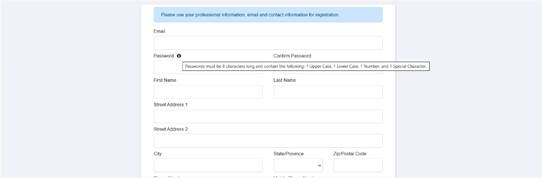
- Enter the following required personal details on the displayed RxGov registration form:
*Note: Your state's Admin may have enabled a custom privacy statement to display at the top of the registration form upon initial registration. If this privacy statement is displayed, please review it to better understand the site's data collection, use, and categories of information collected.
- Email (The email created here becomes your username)
- Password (Passwords must be at least 8 characters in length, contain uppercase and lowercase characters, and contain at least one special character and one digit.)
- Confirm Password
- First Name
- Last Name
- State
- Mobile Phone Number
- Select Dispenser from the Account Type drop-down menu.

*Note: The following fields are only available when the Dispenser account type is selected.
- DEA Number
*Note: DEA number format and DEA file validation is automatically verified upon number entry. Incorrect format disables the Register button until a correctly formatted number is entered. If the DEA file validation fails, an error is displayed, but registration may continue.
- NPI Number
- License Number
- Licensing State
- Click Register to complete the account creation.
- View the displayed Registration Complete message and verify that a message was sent to the email address associated with the account.
- Click the link provided in the confirmation email to confirm the email address.
- An RxGov Administrator will activate the account. Newly-created accounts must be activated by an RxGov Administrator before the user can proceed to log in.
- After the RxGov Administrator activates the new account, an Account Status Change email is sent to the email address associated with the account.
*Note: If a confirmation message is not received, check the Spam folder in the email application. If the message is not found, contact your Admin to have the confirmation resent.
**Note: For firewall reasons, some users may be unable to receive the DoNotReply@rxgov.com email containing the hyperlink to confirm their email account. In those cases, the user may need to whitelist IP address 149.72.202.144 to receive emails from DoNotReply@rxgov.com. - Once an Administrator has approved the account, open the RxGov URL and use the email address (username) and previously-created password to log into RxGov.
The Dispenser Engine
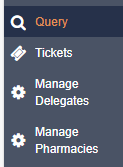
The Dispenser Engine provides users with the Dispenser role permissions enabled access to RxGov tools for managing Prescription Drug Monitoring Program (PDMP) compliance and PDMP prescriptions. When opened, the Prescriber Engine defaults to the Query dashboard. All menu options are located on the left side of the screen. Available menu options displayed depend on which clinician features are enabled.
Patient Query
On the Patient Query dashboard, Dispensers can run queries to determine if patients comply with state Prescription Drug Monitoring Program (PDMP) mandates. Dispense detail results are available to view for each query. If no dispenses are found, RxGov displays the Query returned no results message. For individuals not found in RxGov, the No patients found for State message is displayed.
Performing Queries
Depending on the requirements of your state Prescription Drug Monitoring Program (PDMP), submitting a patient query request may require the following fields:
- First Name
- Last Name
- DOB
Complete the following steps to perform a query:
*Note: Required fields are marked with a red asterisk.
- On the Prescriber Engine, in the Query menu, on the Patient Query page, under the Patient Query tab, enter the required fields and any optional fields as necessary.
- Select the Species option to filter patient dispenses to view only Human or Non-Human dispenses. The default setting is to view All.
- Click Submit.
- View the query results displayed in the Patient Results section.
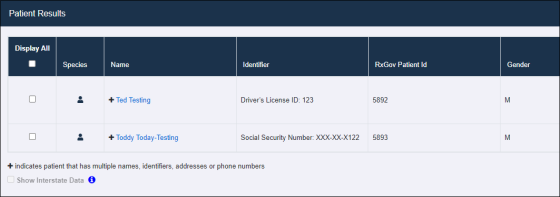
- (If configured and allowed by the state PDMP Admin) Click Print in the upper right corner of the displayed window to print query results.
*Note: If the Patient Query returns multiple patient records, and only some of those patient records are to be printed, select the checkbox of the patient record(s) to be printed. Click Print. Only the selected patient records are sent to the printer.
- Select the checkbox to the left of a patient name to display details about that patient dispense.
*Note: The icon in the Species column indicates if the patient is a veterinary patient or a human patient. Patients with multiple names, identifiers, addresses, or phone numbers are indicated in the results by a plus (+) sign. - In the Patient Information section, further information about the patient dispense is displayed in the Dispense Details tab.
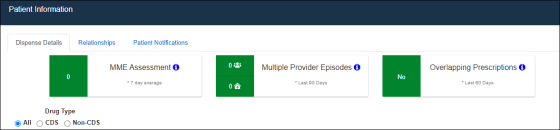
- (Optional) Your state PDMP may be configured to display patient-level alerts when a patient is selected. View one of the following three patient-level alerts to provide at-a-glance guidance on potential risks:
- MME Assessment – Morphine Milligram Equivalent (MME) Assessment evaluates the amount of morphine to which an opioid dose is equivalent and provides an average for patient dosage.
- Multiple Provider Episodes – Displays the number of prescribers and dispensers visited by the patient within a designated lookback period resulting in opioid dispenses.
- Overlapping Prescriptions – Displays the number of overlapping prescriptions for opioid and benzodiazepine dispenses within a lookback period.
- Select an option from the Filter drop-down menu to filter the number of months of patient query to display. The default filter setting displays the state-mandated period of months for review in patient queries.
- Select a Drug Type option to filter dispenses by drug type. The following options may be selected in the Drug Type field:
- CDS - Controlled medications
- Non-CDS - Non-Controlled medications
- All - (Default setting) The default view is for All dispenses.
- Dispenses are displayed under the Controlled Substance Dispenses or Non-Controlled Substance Dispenses labels under Dispenser Dispense Details according to type when filtered.
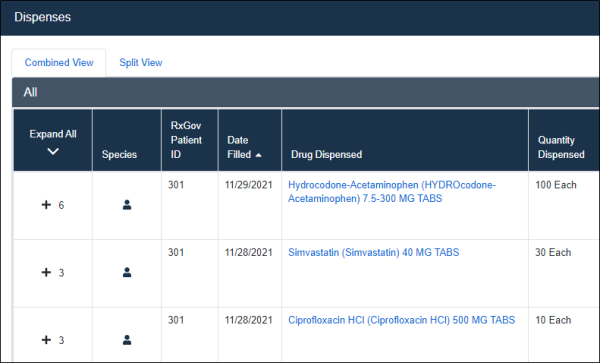
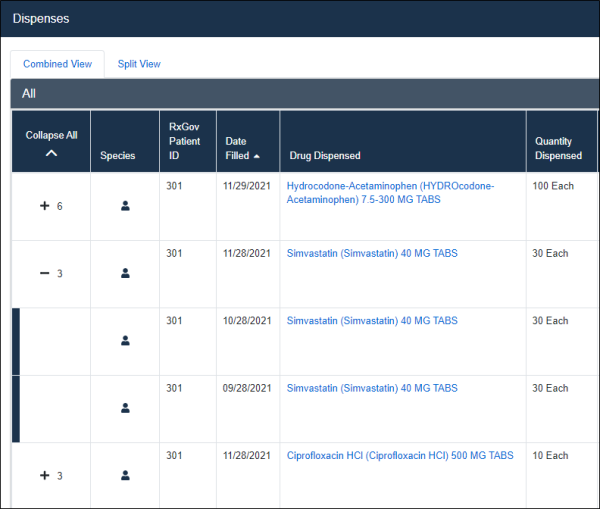
*Note: When no dispenses for the selected filter are found, a Query returned no results message is displayed. - Click the plus (+) sign in the left column to expand the group and view the individual dispenses. Click again to collapse the group back to one row. Alternatively, click the Expand All or Collapse All arrow to expand or collapse all results.
*Note: The state PDMP may be configured to display grouped dispenses with a plus sign (+) and a number in the left-hand column. The plus (+) sign indicates a group of dispenses of the same drug, defined as any dispenses where the generic ingredient, strength and dosage are the same. For example, identical prescriptions and prescriptions with refills. The number indicates the number of dispenses in each group. Click the minus (-) sign to collapse the group back to one row.
- To view details for a single dispense, click the name of the drug displayed in the Drug Dispensed column to display the dispense details.
- Click the X to return to the Dispense Results screen. If no dispenses are found, RxGov displays the Query returned no results message. For individuals not found in RxGov, the No patients found for State message is displayed.
 Query parameters can be broadened to capture expanded results. In cases where the order of the patient names is uncertain, the query can be submitted to search for the names in any order. For example, if the patient name is listed as “Mason Morgan”, but could also be listed as “Morgan Mason”, the query can be configured to find all combinations.
To have the query search for names in any order, select the Search for any first and last name combinations checkbox in the Patient Query section.
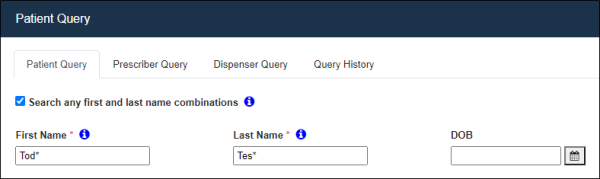
An additional search option, Search by Partial Name, may be available, subject to the configuration determined by the state PDMP.
To search by partial name for First Name, Last Name, or both, type the known letters in each field, followed by an asterisk, and click Submit (The minimum number of letters required for a search is determined by your state PDMP.).
*Note: If the number of letters entered is too few, a message is displayed, indicating the minimum number of letters required for the search.
Patient Relationships
Once a query is run, the relationship information between Dispensers and Prescribers is viewable in the results section.
Complete the following steps to view the relationships between Dispensers and Prescribers:
- In the Patient Results section of the query, select the checkbox to the left of a patient name to display details about that patient dispense.
- In the Patient Information section, click the Relationships tab to display further information. This tab defaults to the pie chart view and the number of past months selected in the Dispense Details filter.
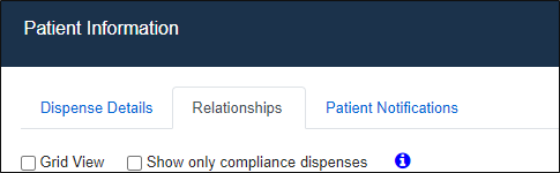
- In the pie chart view, hover over a color to see Dispenser or Prescriber details.
- (Optional) Select the Show only compliance dispenses checkbox to change the pie chart view to display only compliance dispenses.
- (Optional) Select the Grid View checkbox to view the relationship data in a table format.
- (Optional) When viewing multiple records for the same patient (for example, when Veterinarian dispenses are also returned), select the Merge Patients checkbox to combine records displayed in the pie charts.
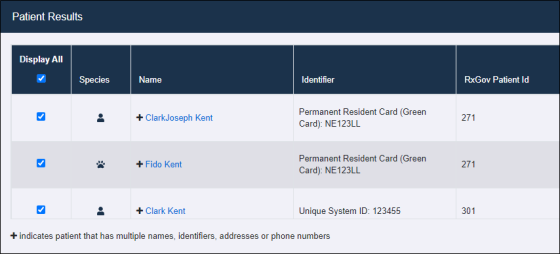
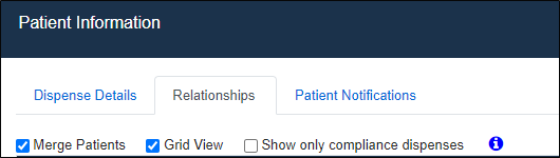
- View the displayed pie charts.
 *Note: All dispenses found for the associated patient records are displayed in one Dispenser and one Prescriber pie chart to provide a single visual for each set of relationships.
Tickets
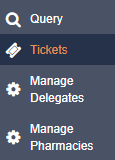
The Tickets menu displays all Dispenser tickets sent to Prescription Drug Monitoring Program (PDMP) Administration for approval. For example, user identifier change requests, patient issues, and patient merge requests.
If a change request is submitted incorrectly, it can be rescinded. To rescind a request, click the Rescind checkbox next to the Ticket ID, then click Rescind.
*Note: Tickets may be rescinded as soon as they are displayed in the Tickets menu. However, once a ticket has been resolved by an Admin, it can no longer be rescinded.
Once a ticket is rescinded, a Success window is displayed to confirm that the process has completed.
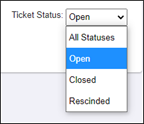
Tickets can also be sorted by status. Select an option from the Ticket Status drop-down menu to sort the displayed tickets by status.
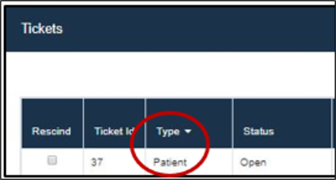
Tickets can also be sorted by column content. Click a column header, then click the white arrow to sort the contents of a column.
Manage Delegates
Dispensers have the option to establish Dispenser Delegates who can manage patient queries on the dispenser’s behalf. When enabled by Prescription Drug Monitoring Program (PDMP) Administration, Dispenser Delegates can perform and view patient dispense queries, report patient issues, and flag duplicate patient records for merging.
When selected, the Manage Delegates menu defaults to the My Delegates tab.
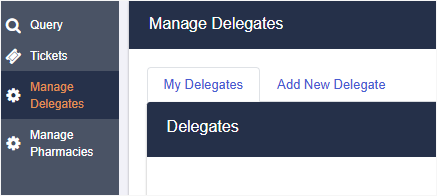
Complete the following steps to manage Dispenser Delegates:
- On the Manage Delegates menu, in the Manage Delegates section, click the Add New Delegate tab to add a new delegate.
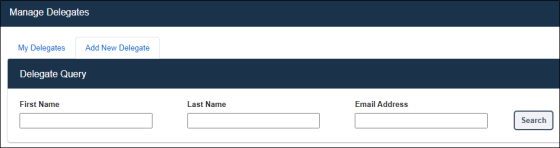
- In the Delegate Query section, enter criteria in one or more of the following fields to search for a delegate:
- First Name
- Last Name
- Email Address
*Note: Partial entries in any of the Delegate Query fields return results based on the content entered. For example, when Mi is entered into the First Name field, results are displayed to include all first names beginning with Mi: Michael, Michelle, Mitch, etc.
- Select the desired delegate from the results returned and verify that the delegate’s RxGov registration status is active.
 Note that the Delegate must have completed their user registration in RxGov before being visible/eligible to be shown in search results.
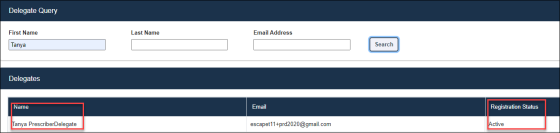
- Click Make Delegate to create the new delegate.
- Review the content of the displayed Confirm Expiration Date window.
*Note: An expiration date for the delegate relationship is required. To change the default date, select a new date in the calendar menu or enter a new date in the Expiration Date field.
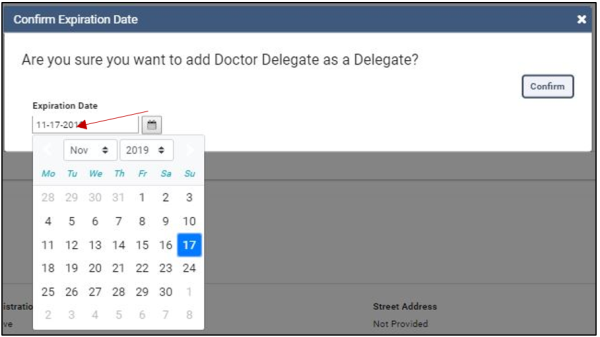
- Click Confirm to request the delegate relationship.
- Review the content of the displayed Status Changed window.
- On the Manage Delegates page, under the My Delegates tab, review the Relationship Status of the new delegate. The requested delegate status is displayed as Pending until the delegate activates the relationship.
Manage Pharmacies
Dispensers may now grant access to other individuals to assist with error correction. All users that have a role type of Submitter, Submitting Prescriber, Dispenser, Dispenser Delegate, Submitting Dispenser, and Admin will have a “Manage Pharmacies” menu item on the main menu of RxGov.
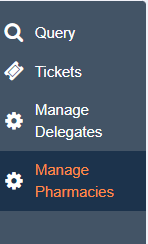
- Click on Manage Pharmacies to view the “My Pharmacies” tab and the green “Add New Pharmacy” button.

2. To request access to the errors from a pharmacy, click on the Add New Pharmacy button in the upper right corner.
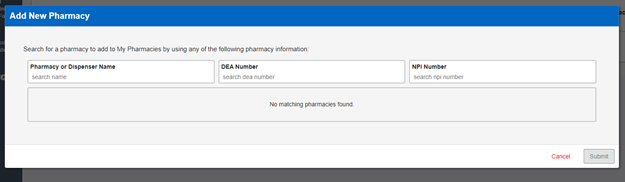
Pharmacies may be searched by name, DEA number, or NPI number. Only pharmacies provided by the state are available to search; therefore, if you are unable to locate your pharmacy, please check with your state administrators. Names are case sensitive so if you are unable to locate the pharmacy by name, please use the DEA or NPI number. Once a valid entry is detected, the matching Pharmacy will display. Choose a pharmacy by clicking the open box to the left and choose the requested role. Click the desired role and the Submit button will be available to submit the request.
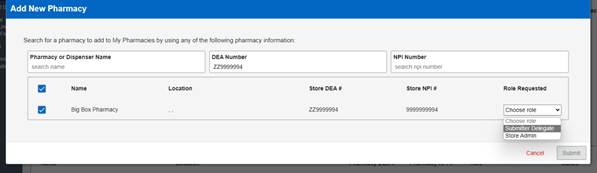
Pending requests will appear on the Pharmacy Admin page.

Dispense Correction
Once approved by the Store Admin, the Dispense Correction menu item will appear on the main menu and you will gain access to the errors and warnings for that pharmacy.
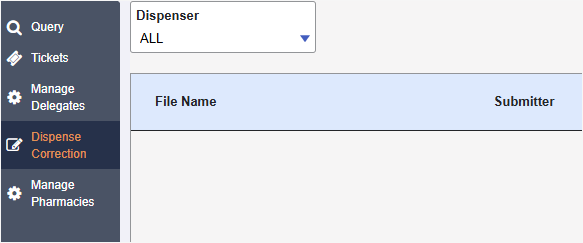
Once you click on Dispense Correction, you will be able to see dispenses with Errors and Warnings. If you have access for more than one pharmacy, there is a drop-down box at the top of the Dispense Correction page that you can use to just choose the pharmacy you wish to work on at that time. Leaving it on ALL will show all dispenses with Errors/Warnings from all your associated pharmacies.
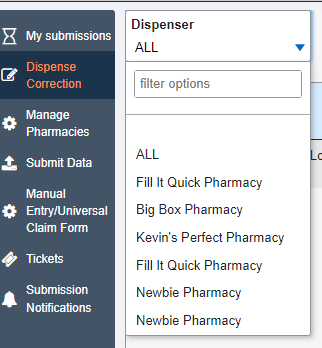
Once you select a pharmacy or multiple pharmacies, you will see all dispenses displayed. There are also filters at the top for Start and End Dates, as well as an option to have only dispenses with open (noncorrected) errors displayed.

If a dispense has no errors or warnings, the Dispenses button will be grayed out. Only dispenses with errors or warnings will allow you to open them.
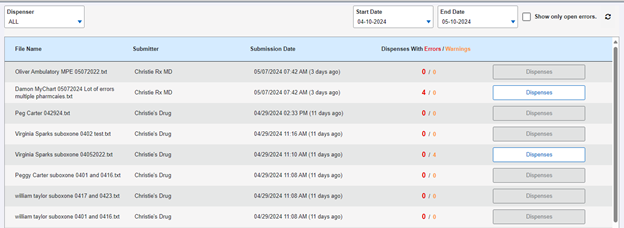
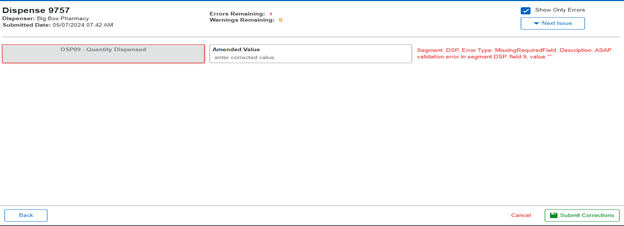
Clicking on the Dispenses button will display each dispense with an error or warning individually allowing you to correct them one at a time and submit them individually if you don’t have time to correct all of them in a single session.